OCR processing
Otary does not provide any OCR (Optical Character Recognition) engine. You are free to use the one that you prefer: Tesseract, EasyOCR, DocTR, Azure Document Intelligence, AWS Textract, etc...
Instantiation
Instantiate your OcrMultiOutput
Now, once you have your OCR outputs, you can manipulate them in a single unified object:
| import otary as ot
ocrmo = ot.OcrMultiOutput.from_pytesseract(ocr_output)
|
This example was made using PyTesseract but you can use your favorite OCR engine.
Otary OCR Engines Adapters
Here are all the OCR engines adapters available in Otary:
See the class methods from OcrMultiOutput for more information.
Adapt to any OCR
If your OCR engine is not in the list above, you can create your own OcrMultiOutput
object easily this way:
| import otary as ot
your_ocr_outputs = ... # from your favorite OCR engine
ocrsos = []
for ocr_output in your_ocr_outputs:
ocrso = ot.OcrSingleOutput(
bbox=ot.Rectangle(ocr_output["bounding_box"]),
text=ocr_output["text"],
confidence=ocr_output["conf"],
objectness=ocr_output["objectness"]
)
ocrsos.append(ocrso)
ocrmo = ot.OcrMultiOutput(ocrsos)
|
Displaying
Display OCR outputs
Here is a very quick example using Otary and Pytesseract as the OCR engine:
| import otary as ot
import pytesseract
im = ot.Image.from_pdf('../tests/data/vision/example1/test.pdf')
ocr_outputs = pytesseract.image_to_data(
im.as_pil(),
output_type=pytesseract.Output.DICT
)
ocrmo = ot.OcrMultiOutput.from_pytesseract(ocr_outputs)
im.copy().draw_ocr_outputs(
ocr_outputs=ocrmo.ocrsos,
render=ot.OcrSingleOutputRender(thickness=1, default_color="red")
).show()
|
Here is what the following code would display:
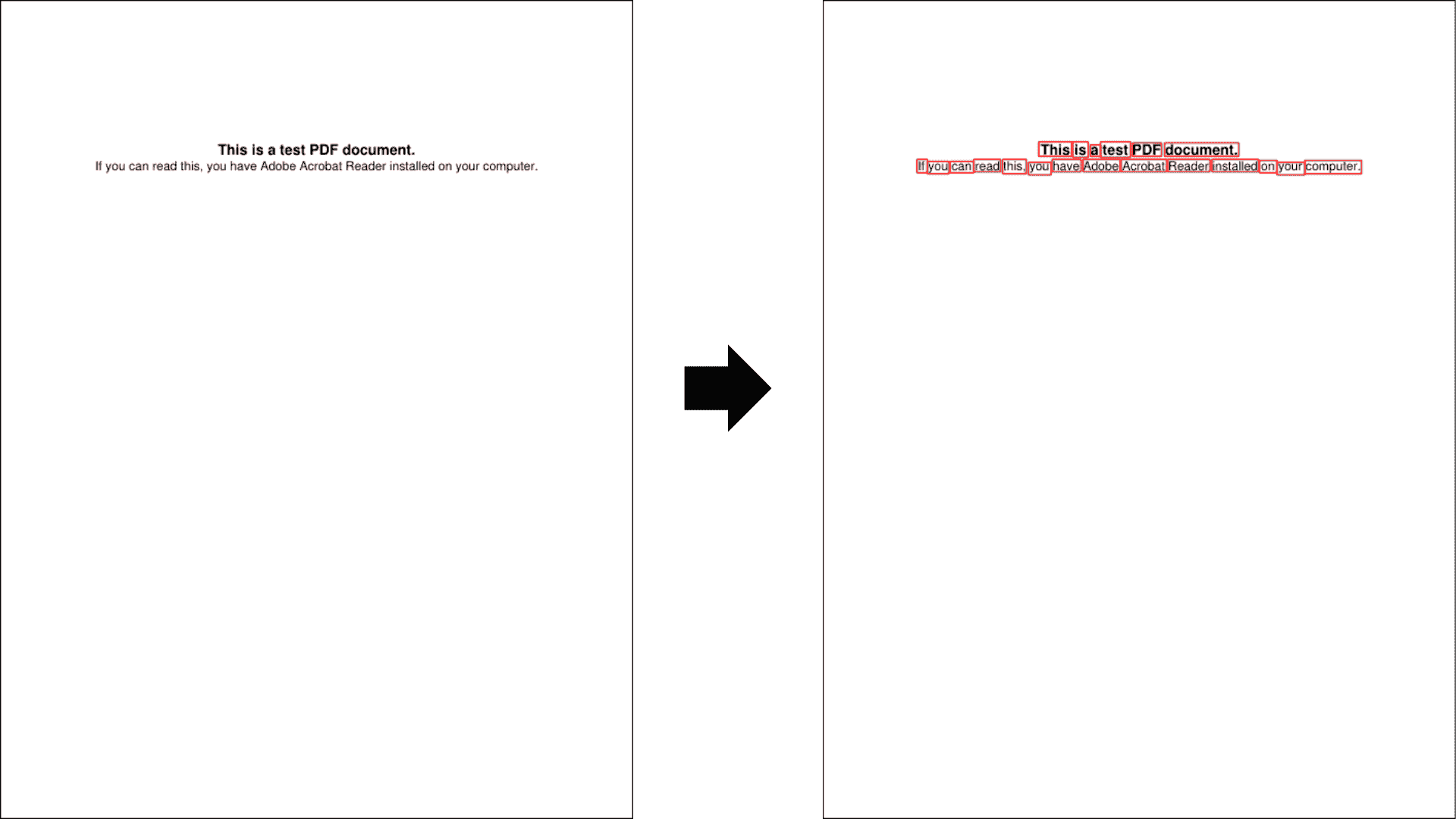
Rotated Bounding Boxes
If you have OCR outputs with rotated bounding boxes, you can also manipulating them
with Otary.
| import otary as ot
filepath: str = "../tests/data/vision/example2/sample-otary-img1.pdf"
ocr_outputs = ... # from Azure Document Intelligence OCR engine for example
img = ot.Image.from_file(FILEPATH)
ocrmo = ot.OcrMultiOutput.from_azure_document_intelligence(
azure_output=ocr_outputs,
image_dim=(img.width, img.height),
page_nb_to_analyze=0,
level="word",
assume_straight_pages=False
)
im = img.copy().draw_ocr_outputs(
ocr_outputs=ocrmo.ocrsos,
render=ot.OcrSingleOutputRender(thickness=1, default_color="blue")
)
|
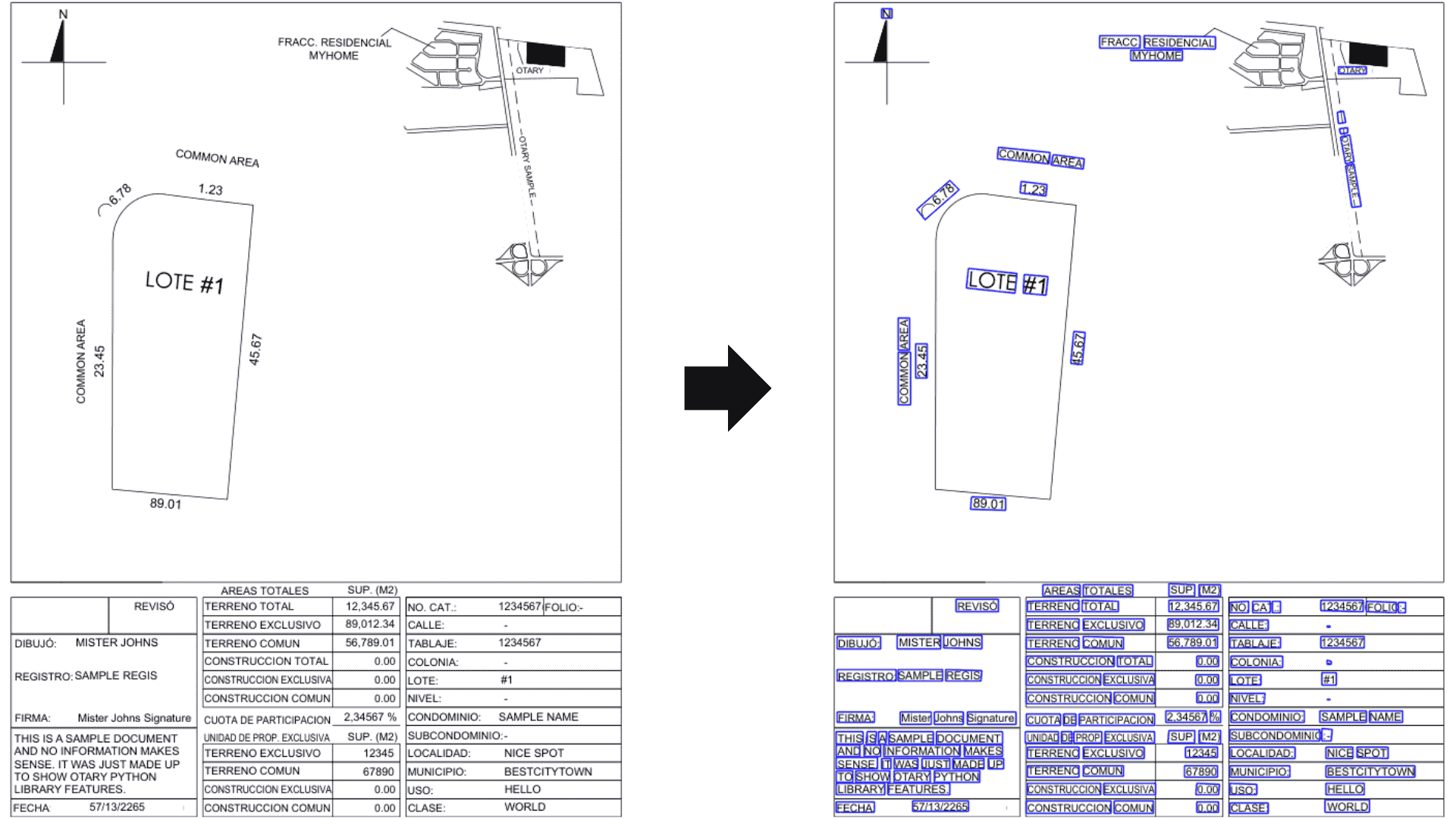
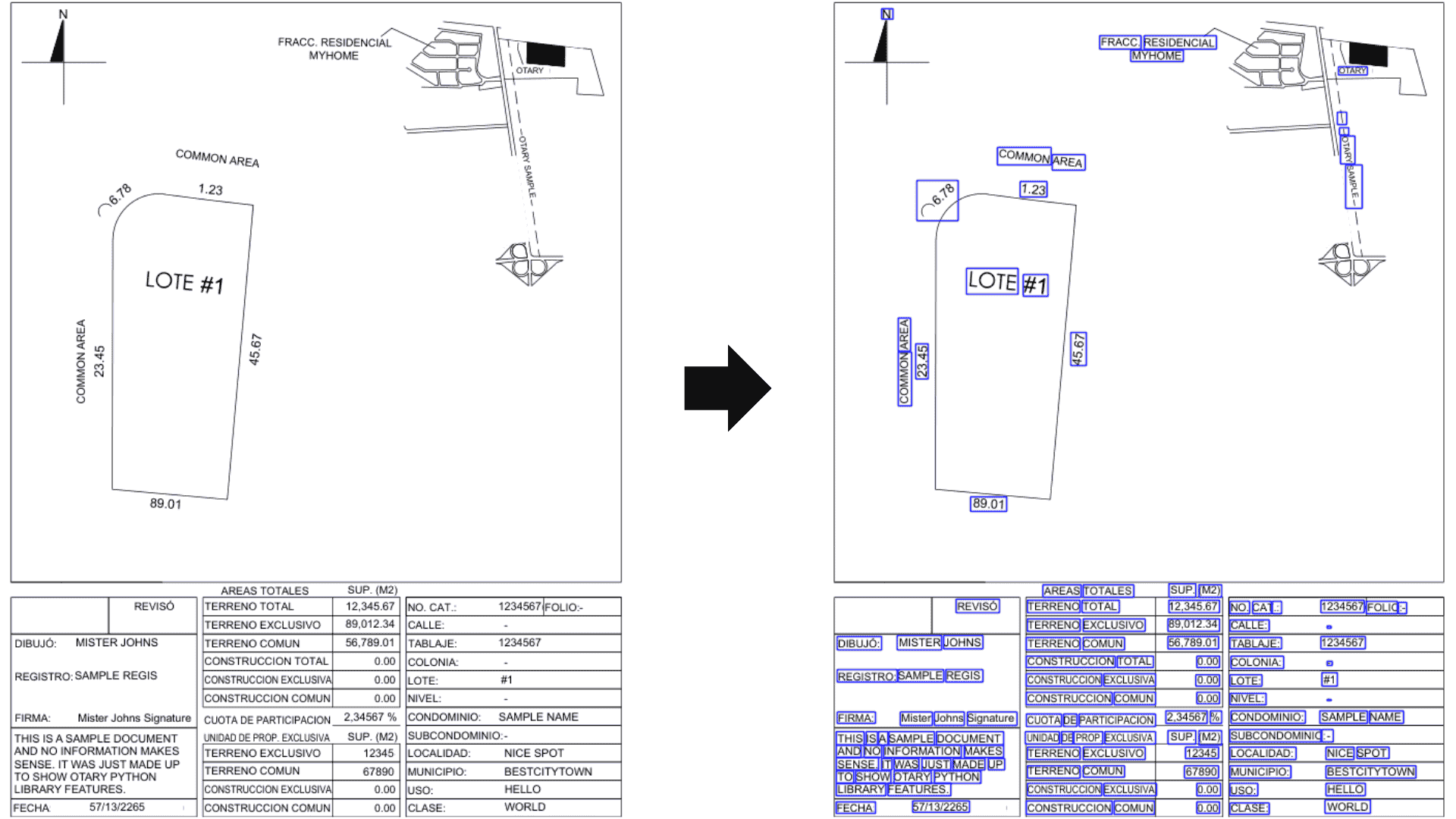
Axis-Aligned Bounding Boxes
You can force the usage of Axis-Aligned Bounding Boxes (AABB) instead of rotated Bounding Boxes (OBB) by setting assume_straight_pages=True
| ocrmo = ot.OcrMultiOutput.from_azure_document_intelligence(
azure_output=ocr_outputs,
image_dim=(img.width, img.height),
page_nb_to_analyze=0,
level="word",
assume_straight_pages=True
)
im = img.copy().draw_ocr_outputs(
ocr_outputs=ocrmo.ocrsos,
render=ot.OcrSingleOutputRender(thickness=1, default_color="blue")
)
|
Analysis
Using Otary, you can easily extract key information from your OCR outputs.
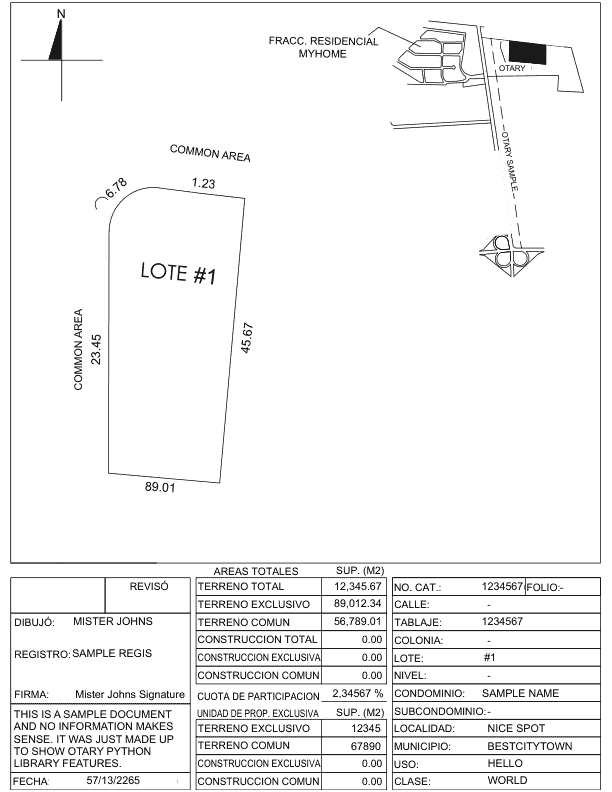
Given the previous image, you can extract the value of the key "MUNICIPIO"
(located at the bottom right of the image) this way:
| import otary as ot
im = ot.Image.from_file(filepath="path/to/file/image")
ocr_output = ... # from your OCR engine
ocrmo = OcrMultiOutput.from_aws_textract(ocr_output)
# find the value of the key "MUNICIPIO"
value = ot.HeuristicKeyInformationExtractor.extract(
ocr_outputs=ocrmo,
key="MUNICIPIO",
closest_word_dist_thresh=im.dist_pct(pct=0.05), # 5% of image diagonal distance
levenshtein_threshold=0.85
)
print(value.text) # BESTCITYTOWN
|
Group Words
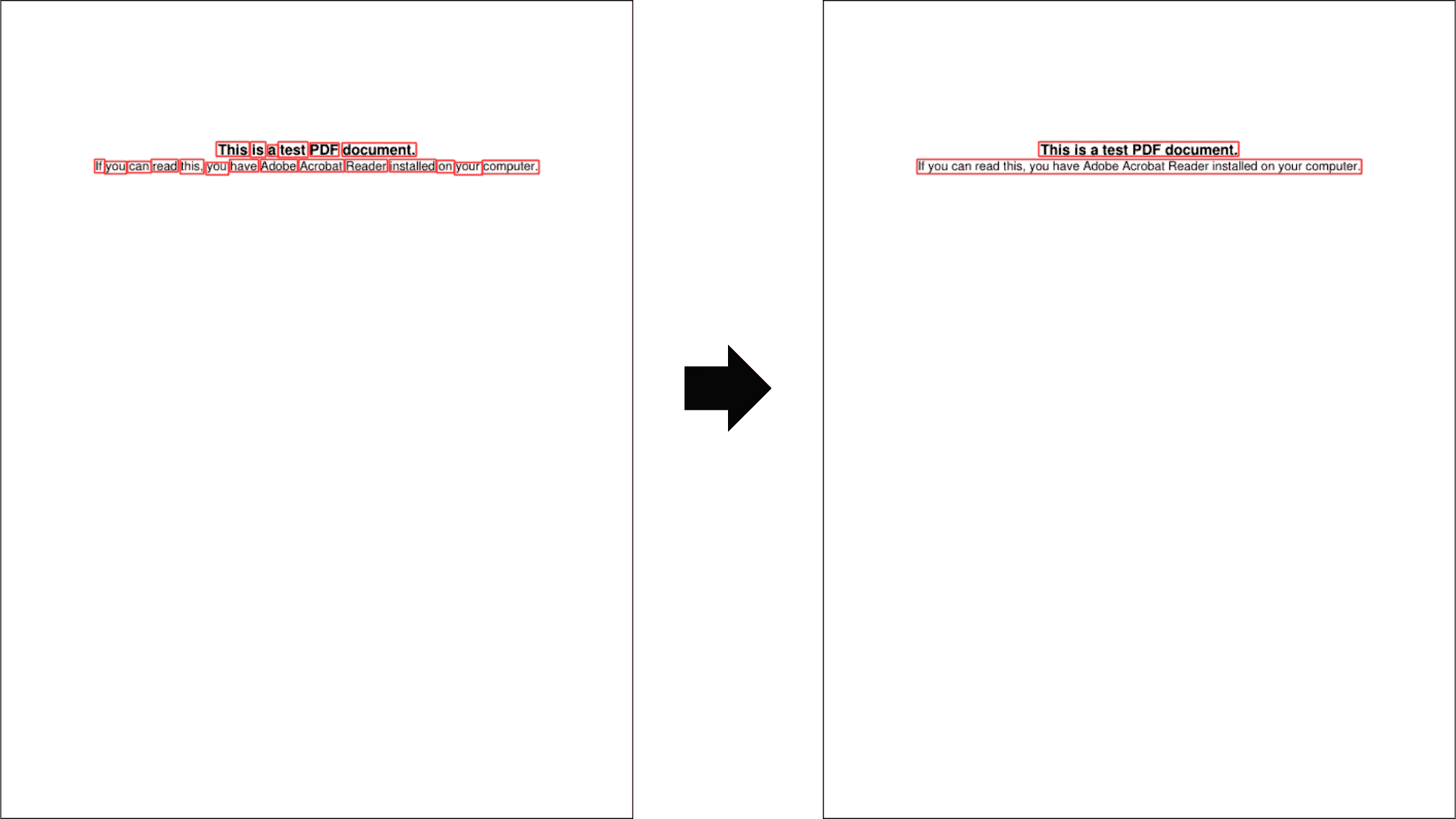
Modern OCR engines now have layout capabilities. They contain information about
pages, paragraphs, lines, words and more.
However, some OCR engines do not provide this information. In those cases, Otary
can help. You can reconstruct lines for example using the following code:
| import otary as ot
im = ot.Image.from_pdf('../tests/data/vision/example1/test.pdf')
ocr_outputs = pytesseract.image_to_data(
im.as_pil(),
output_type=pytesseract.Output.DICT
)
ocrmo = ot.OcrMultiOutput.from_pytesseract(ocr_outputs)
ocrmo_groups, _ = ocrmo.group_words(
min_word_dist=im.dist_pct(pct=0.05)
)
im.copy().draw_ocr_outputs(
ocr_outputs=ocrmo_groups.ocrsos,
render=ot.OcrSingleOutputRender(thickness=1, default_color="red")
).show()
|
Find closest word to another
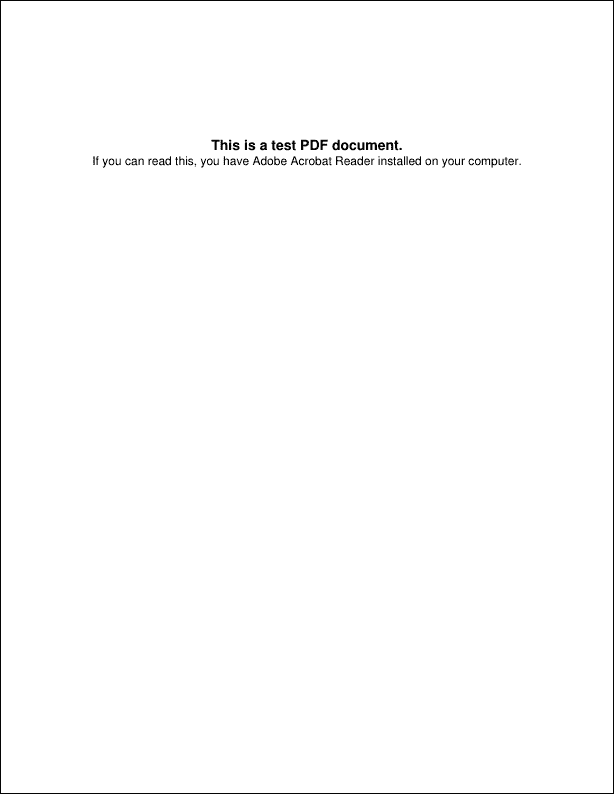
Using Otary, you can find the closest word to the right of any word.
Given the following document:
You could compute:
| import otary as ot
im = ot.Image.from_pdf('../tests/data/vision/example1/test.pdf')
ocr_outputs = ... # from your favorite OCR engine
ocrmos = ...
print(ocrmo.ocrsos[4].text) # PDF
closest_word = ocrmo.find_closest_word(
word=ocrmo.ocrsos[4],
direction="right",
dist_thresh=im.dist_pct(pct=0.05) # 5% of image diagonal distance
)
print(closest_word.text) # document.
|
You can do the same to the left:
| closest_word = ocrmo.find_closest_word(
word=ocrmo.ocrsos[4],
direction="left",
dist_thresh=im.dist_pct(pct=0.05)
)
print(closest_word.text) # test
|
Find words in a given spatial region
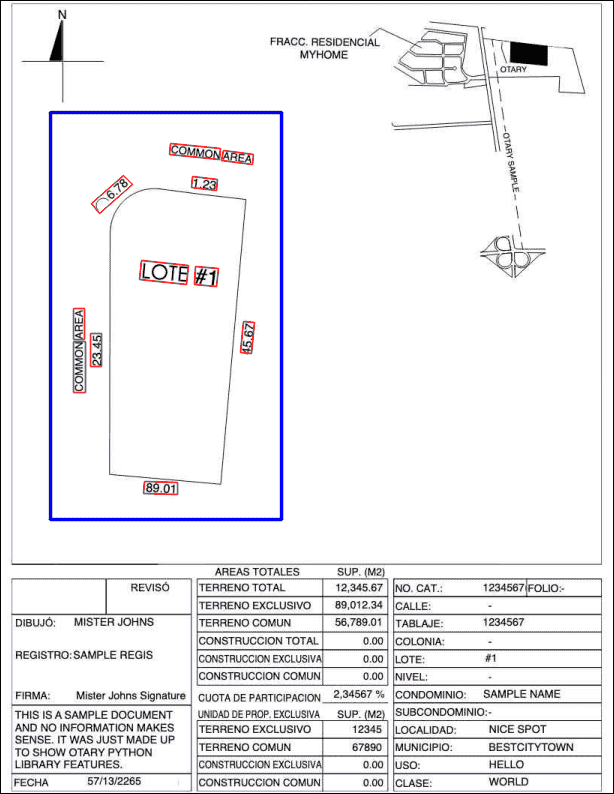
Using Otary, you can find all OCR Bounding Box that are in a given spatial region.
| import otary as ot
im = ot.Image.from_file("../tests/data/vision/example2/sample-otary-img1.pdf")
# define your OCR outputs
ocr_outputs = ... # from your favorite OCR engine
ocrmo = ...
# define your spatial region
polygon_array = np.array(
[[60, 200], [130, 130], [270, 130], [270, 300], [250, 500], [60, 500]]
)
polygon = ot.Polygon(polygon_array)
aabb = polygon.aabb().expand(1.1)
# find words in the spatial region
ocrsos_crop = ocrmo.words_in(box=aabb)
# display
im.copy().draw_polygons(
polygons=[aabb],
render=ot.PolygonsRender(colors=["blue"], thickness=2),
).draw_ocr_outputs(
ocr_outputs=ocrsos_crop,
render=ot.OcrSingleOutputRender(thickness=1, default_color="red"),
).show()
|
This previous code would display:
Drop duplicates
| import otary as ot
im = ot.Image.from_file("../tests/data/vision/example2/sample-otary-img1.pdf")
# define your OCR outputs
ocr_outputs1 = ... # from your favorite OCR engine
ocrmo1 = ...
# imagine you have some other OCR outputs
ocr_outputs2 = ... # from your 2nd favorite OCR engine
ocrmo2 = ...
# merge ocr outputs
ocrmo = OcrMultiOutput.merge([ocrmo1, ocrmo2])
# drop duplicates
ocrmo.drop_duplicates(dist_thresh=im.dist_pct(pct=0.05))
|
OCR Deduplication
OCR de-duplication can be useful when using free OCR engines and still
want to detect precisely rotated bounding boxes. Currently, detecting
words in any orientation is not that easy. One approach consists in rotating
the image in different angles and then using the same OCR engine to detect
words. Then you can de-rotate the found words and bounding boxes.
# Otary provides thoses methods
image.rotate()
bbox.rotate()
Once you have all the words detected in all rotation angles restored in the
original orientation of the image you can then de-duplicate the OCR outputs.